
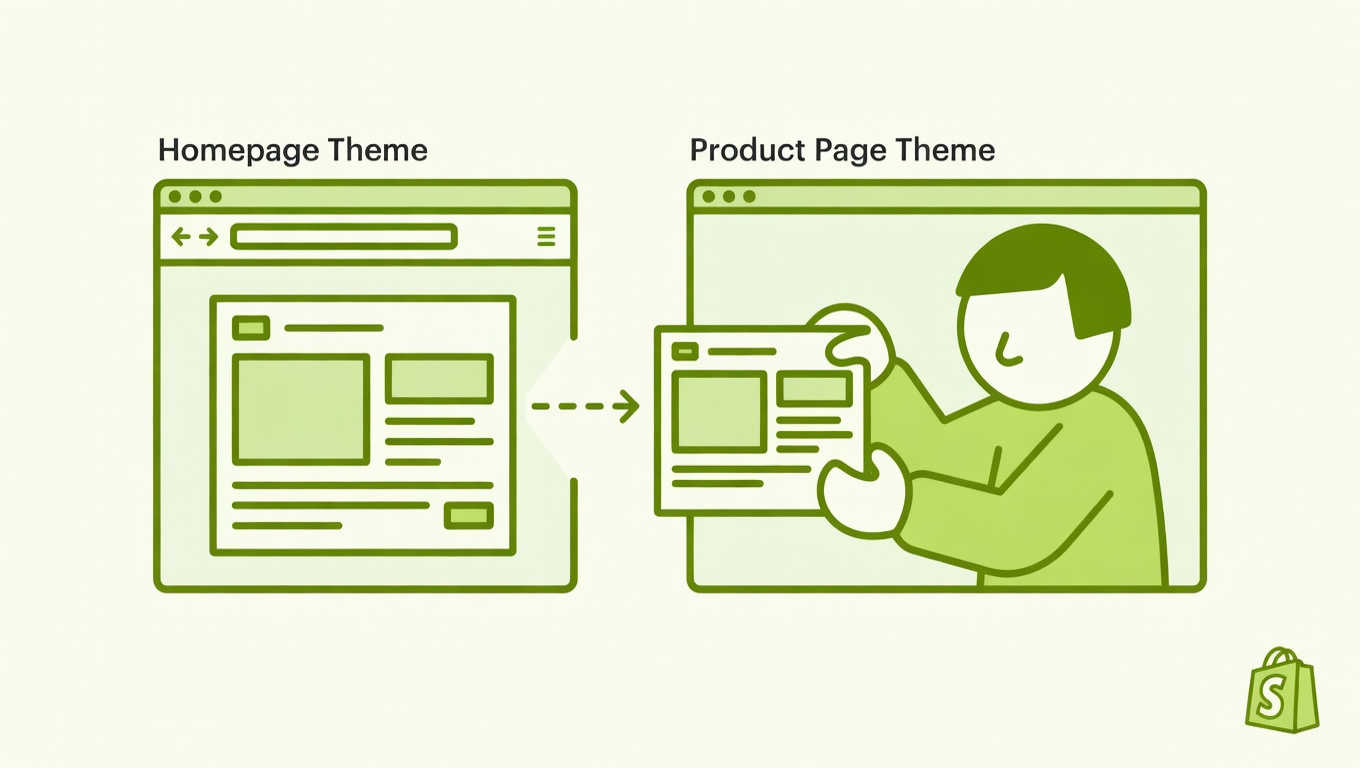

You’ve spent time getting a section looking exactly right — the spacing, the copy, the blocks — and now you want it on another page, or even in a different theme. Shopify’s editor is powerful, but it doesn’t make this obviously easy. Here’s the full picture of what works, what doesn’t, and how to get unstuck.
Copying Sections Between Pages (Same Theme)
Good news: Shopify now supports native copy-paste across pages within the same theme. This was a long-requested feature that rolled out in 2025.
How to do it
- Go to
Online Store → Themes → Customize - Navigate to the page that contains the section you want to copy
- Right-click the section in the left-hand panel (or click the three-dot menu)
- Click Copy
- Switch to the target page using the page selector dropdown at the top
- Right-click in the sections panel and select Paste
- Click Save
That’s it. Shopify’s changelog confirms you can now copy elements from one page and paste them onto another, which makes maintaining design consistency across your store dramatically faster.
Pro tip: The copy-paste feature works for both full sections and individual blocks inside a section. If you only need to duplicate a content block (like a single testimonial card), right-click the block specifically — not the whole section.
One thing to know about pasted sections
When you paste a section onto another page, Shopify creates a completely independent copy — it is not linked to the original. That means if you paste the same testimonials section on three pages and later want to change the heading, you’ll need to update all three manually. For small stores this is usually fine, but keep it in mind as your store scales.
Copying Sections Between Pages via JSON (For Exact Content Duplication)
The native copy-paste is great for layout, but if you want to carry over every setting, image, and text field exactly — especially for complex sections with lots of blocks — editing the JSON template files gives you the most control.
Step-by-step
- In the Theme Editor, go to
... → Edit Code(three-dot menu, top left) - Open the Templates folder in the left file list
- Find and open the template for the source page (e.g.
index.jsonfor homepage,product.jsonfor product pages) - Search (
Ctrl+F/Cmd+F) for the name of your section — it’ll look something like"my-section-name-XyzABc" - Copy the entire section object (the block of JSON that includes
"blocks","block_order", and"settings") - Open the target page’s template file (e.g.
page.json) - Paste the copied block into the
"sections"object, and add its key into the"order"array - Click Save
- Return to the Theme Editor and reload — your section will appear on the target page with all its content intact
Warning: Always duplicate your theme before editing code (
Online Store → Themes → ··· → Duplicate). One bad save can break your live store.
The sections after duplication via JSON are independent of each other — changes on one page won’t affect the other.
Copying Sections Between Different Themes
This is where things get genuinely tricky, and it’s the most common point of frustration. There is no native way to copy a section’s content and settings from one Shopify theme to another through the editor.
Here’s why:
- Each theme has its own section files written in Liquid, with different schemas, variable names, and CSS classes
- A section from Theme A expects different settings keys than Theme B — even if they look visually similar
- Pasting JSON from one theme’s template into another theme’s template will cause errors or broken layouts
What you can actually do
| Scenario | Best approach |
|---|---|
| Moving to a new theme, want same layout | Rebuild sections manually in the new theme’s editor |
| The new theme has the same section type | Re-add the section and re-enter your content |
| Custom section built by a developer | Have the developer port the .liquid file + CSS to the new theme |
| Switching themes often | Use a page builder app (see below) |
Porting a custom Liquid section to a new theme
If a developer built a custom section for your old theme and you want it in your new one, the Liquid file itself can be copied — but it’s not a simple drag-and-drop. Understanding HTML, CSS, and JavaScript is crucial when migrating pieces from one theme to another, because they rarely fit out of the box and additional coding work is usually needed to make styles and functionality match the new theme.
If you’re not technical, this is a job for a Shopify Partner or developer — it’s usually a 1–3 hour task, not a full project.
When to Use a Page Builder App
If you find yourself constantly fighting Shopify’s native copy-paste limitations — especially across themes or across many pages — a page builder app may save you significant time.
Popular options include:
Replo— landing page builder that works independently of your themeShogun— visual page builder with cross-page section reuseEComposer— includes a section template library and cross-page copy toolsGemPages— strong for landing pages and campaign pages
The advantage: these tools include true cross-page copy/paste, and some even allow you to save section templates and reuse them across multiple stores — useful if you manage more than one Shopify store.
The trade-off: page builder apps add a monthly cost, and pages built inside them live outside your theme’s native code, which can complicate future theme switches.
Pro tip: If you only need to move sections occasionally, stick with Shopify’s native tools. Page builders are worth it when you’re building many landing pages regularly or managing multiple stores.
Common Errors and Quick Fixes
“This section cannot be added to this template” The section is restricted to a specific page type. Some sections are only designed for the homepage or product pages. Add a different section that’s compatible with the target template, then manually recreate the content.
Section pasted but looks broken or unstyled This usually means the target page’s template doesn’t support that section type, or a schema mismatch exists. Double-check you’re on a compatible template, or use the JSON method for more precision.
Content didn’t carry over after pasting The native copy-paste copies layout and settings, but verify each block — especially images, which sometimes need to be re-selected from your media library.
The bottom line: copying sections within the same theme is now genuinely easy thanks to Shopify’s right-click copy-paste. Moving content between themes is a different beast — plan for some manual work, or bring in a developer for anything complex.